Android powers
You are looking for an app. You search Google Play. It is not there, the available version is outdated, or it is blocked in your region. Sound familiar?
This happens more often than most people expect. Android powers approximately 3.9 billion active devices worldwide in 2025, with estimates ranging from 3.9 to 4.2 billion active Android smartphone users globally, but the Play Store is not the only place to find software for them. Many practical tools, open-source apps, and beta releases live entirely outside it.
Knowing how to find and evaluate these applications safely is a genuine skill. Done right, it opens up a much wider world of Android software. Done carelessly, it exposes your device to real threats.
In this writing, you will learn how to discover trustworthy third-party Android apps, how to check them before installation, and how to install them without compromising your device.
Let’s dive into the basics before moving to the hands-on steps.
What is a Third-Party Application?
A third-party application is any Android app distributed outside of the official Google Play Store. These apps are packaged as APK files, which stand for Android Package Kit. APK is the standard installation format Android uses for all software.
Developers, students, power users, and IT professionals all work with third-party apps for different reasons. Some necessary tools that the Play Store policies restrict. Others want older versions of an app or access to software not yet released in their region. Businesses sometimes distribute internal enterprise apps directly to employees through APK files.
Vidmate, a widely used video downloader, is one practical example. It has never been listed on the Play Store but remains one of the most downloaded third-party apps on Android, available directly through Fileion.
The end benefit is flexibility. Third-party apps let Android users access software that fills real gaps no official store currently covers.
Multiple Channels: Third-party apps are available through several reliable sources: dedicated APK repositories like APKMirror, Fileion, Apkpure, and F-Droid, official developer websites, and beta testing platforms. Each channel serves a different type of user and use case.
Open-Source Availability: For example,F-Droid hosts exclusively open-source Android applications. Every app is built from publicly available source code. This makes it one of the more transparent third-party channels for privacy-conscious users.
Play Protect Coverage: Google Play Protect scans all installed apps on a device, including those loaded from outside the Play Store. It checks apps against a threat database and can disable or remove harmful software automatically, regardless of where it came from.
Developer Verification: Starting in September 2026, Google’s Android developer verification program requires apps installed on certified Android devices to be registered to a developer with a verified identity. This will first be enforced in Brazil, Singapore, Indonesia, and Thailand before rolling out globally, adding an identity layer to sideloaded software and reducing anonymous malware distribution.
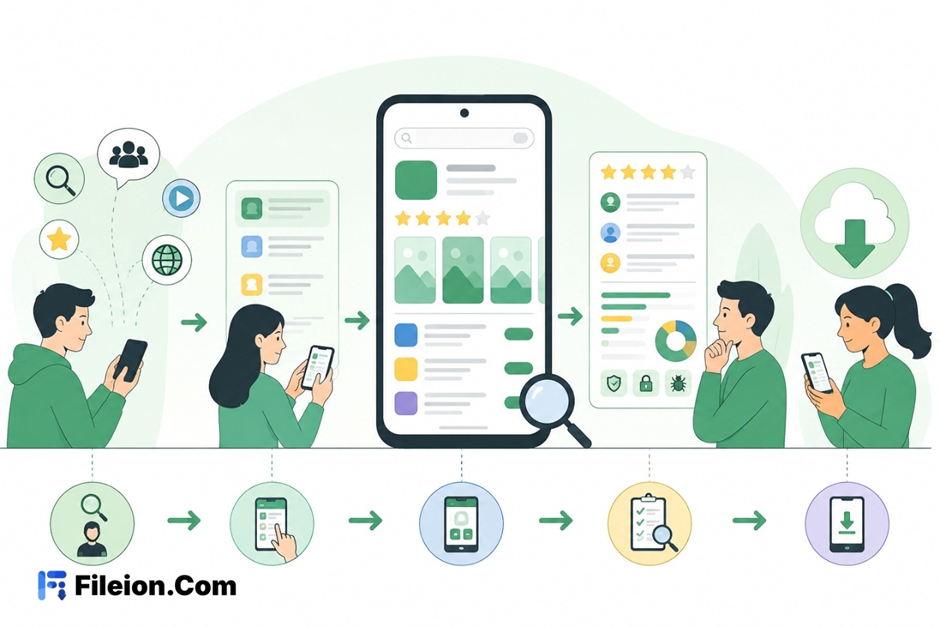
Step-by-Step Guide: How to Discover and Evaluate Third-Party Applications
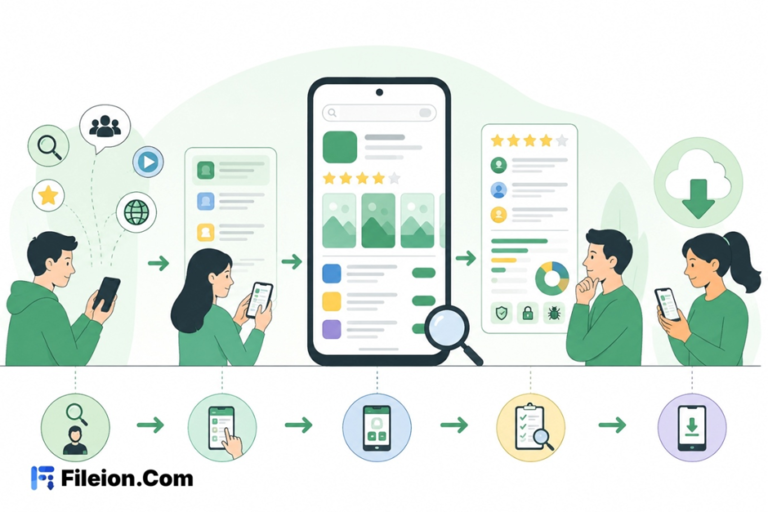
- Start by identifying exactly what you need. Understand why the Play Store does not meet your requirements. Are you looking for a beta release, a region-locked tool, or an open-source alternative? Clarity here guides you toward the right source.
- Search trusted discovery channels only. You may use APKMirror, Fileion, Apkpure for verified mirrors of mainstream apps, F-Droid for open-source software, or the developer’s official website for direct releases. Avoid clicking on search ad results or social media links for APK downloads.
- Research the developer before downloading anything. Look up the developer’s name, official site, and release history. Legitimate developers maintain documentation, changelogs, and contact details. Anonymous publications with no traceable identity are a warning sign.
- Read community feedback from independent sources. Check Reddit threads, XDA Developers forums, or tech communities like GSMArena. Real users frequently identify permission abuse, excessive data usage, or suspicious behavior before official sources catch up.
- Review the app’s requested permissions before you download. For instance, the Torchlight app that requests access to your contacts or microphone is a clear red flag. Only proceed if the permissions listed match the app’s stated function logically.
- Download the APK from your chosen source. Note the file size listed on the official page. After downloading, compare it with the size of the file on your device. A significant mismatch can indicate a tampered or substituted file.
- Scan the APK file using VirusTotal before installing. Visit virustotal.com, upload the APK, and run it through over 70 antivirus engines simultaneously. This step takes under 60 seconds and gives you direct confirmation of whether the file is clean.
- Verify the APK’s cryptographic signature when possible. Like, APKMirror displays the signing certificate for every app it hosts. If the same app exists on the Play Store, confirm the signatures match. A mismatch means the APK has been modified.
- Enable Install Unknown Apps on your Android device. On Android 12 and above, go to Settings, then privacy & security, then other permissions, then Special Permissions, then Install Unknown Apps. Toggle on permission for the specific browser or file manager you will use. On Android 11 and earlier, go to Settings, then Apps and Notifications, then Advanced, then Special App Access.
- Install the APK and allow Play Protect to scan it. When the Play Protect prompt appears, allow it. This sends app details to Google for a code-level evaluation and returns a clear result on whether the app is safe to run.
- Monitor the app closely during the first few days. Watch for unusual battery drain, unexpected data spikes in your network settings, or permission requests that appear at runtime and seem unrelated to the app’s function. These patterns can indicate hidden background activity.
- Disable the Install Unknown Apps permission immediately after installation. This prevents other apps or accidental downloads from triggering unauthorized installs later. Go back to the same settings path and toggle it off.
- Stick to one or two trusted APK sources and avoid rotating between unfamiliar sites. Each new source you use increases your risk exposure.
- Keep Play Protect enabled at all times. It runs in the background and scans over 350 billion Android apps daily, including your sideloaded ones.
- Save a copy of the verified APK file after a successful installation. If a future update introduces unwanted changes, you can reinstall the version you already confirmed as safe.
- Search engines frequently surface malicious clones of popular apps disguised as the real thing. Always navigate directly to the official source URL or a well-known repository. Never rely on ad results.
- Even reputable platforms have had security incidents. In April 2021, APKPure experienced a supply-chain attack in which threat actors compromised client version 3.17.18 and embedded the Android Triada malware payload. No third-party source is entirely immune, so running your own scan is non-negotiable.
- Play Protect flags apps that target outdated Android APIs, lack a verified developer identity, or request sensitive permissions linked to financial fraud. Treat each warning as meaningful information, not an obstacle to click through.
Sideloading third-party Android applications is free. No subscription or license is needed to install APK files on a personal Android device.
Individual app pricing varies. Some are free, some require a one-time purchase, and others operate on a subscription model. Always check the developer’s official site for accurate pricing before downloading from a mirror.
From 2026, Google’s developer verification program requires developers distributing outside the Play Store to register through a dedicated Android Developer Console. This applies to certified Android devices and does not create any cost for end users.
Learning how to discover and evaluate third-party Android applications gives you meaningful control over what software runs on your device. It is not about bypassing security. It is about using the right tools to extend Android’s genuine openness responsibly.
The process is structured and repeatable, with trusted sources, signature checks, VirusTotal scans, Play Protect verification, and post-install monitoring. Follow these steps consistently, and you significantly reduce the risk that comes with sideloading.
If you are ready to explore software beyond the Play Store, Fileion is a reliable place to start. Browse our curated library of Android applications, download directly from our site, and get started today.
Is it legal to install third-party apps on Android?
Yes. Android permits users to install applications from outside the Play Store. Google introduced developer verification requirements for certified devices in 2026, but sideloading for personal use remains legal. Users on advanced access settings can still install unverified apps through a higher-friction path.
APK stands for Android Package Kit. An APK is the file format Android uses to distribute and install applications. It contains the app’s compiled code, assets, and configuration data. Any Android device running version 4.0 or later can open and install APK files.
How does Google Play Protect handle apps installed outside the Play Store?
Play Protect scans all apps on your device regardless of their installation source. For newly sideloaded apps, it may prompt you to submit the file to Google for code-level evaluation. If it detects a threat, it can notify you, disable the app, or remove it automatically, depending on the severity.
What makes APKMirror more reliable than other third-party APK sites?
APKMirror verifies each app’s cryptographic signature against the original signed by the developer. It does not host modified or patched APKs, and it has maintained this security standard since its launch in 2014. It also provides version history, letting users access older releases when needed.
Can I install an older version of an app using a third-party source?
Yes. Platforms like APKMirror maintain full version histories for the most widely used applications. After installing an older version, you can prevent automatic updates by going to the app’s listing in the Play Store and disabling the auto-update option. This keeps the verified version active on your device.
About the Author